Make a coloring page from your own photo
June 15, 2026 — Colorpix
You've got a nice photo of your dog, a class photo or a selfie – and you'd like to do something more with it than leave it sitting on your phone. So make a coloring page out of it. With the turn a photo into a coloring page tool, you turn your own photo into a coloring page in one click: black outlines on a white background, ready to print and color. Free, no account, and your photo stays on your own device. Below you'll find out what you can convert and how to get the cleanest line drawing.
How does it work?
It works on computer, tablet or phone and only takes a few seconds:
- Pick a photo and upload it.
- Pick a style (more on that in a sec).
- Click Convert and wait a moment.
- Check the result with the before/after slider and download your coloring page as a PNG.
Not quite happy with it yet? Try a different style or a different photo – that often makes more of a difference than you'd think. Go to the generator →
Pick a style
You can choose from four styles. General is a good starting setting. Detailed keeps more lines and small details, nice for older kids and adults. Simple makes calm, thicker lines that are easier for little ones to color in. And Cartoon gives a cartoon-style look. Not sure? Start with General and switch later, no problem.
Is there a lot of clutter behind your subject? Then switch on the Remove background option. That leaves just your subject on a white background. It works best when there's only one clear subject in the photo.
What can you convert?
Almost any photo with a clear subject works. A few popular ideas:
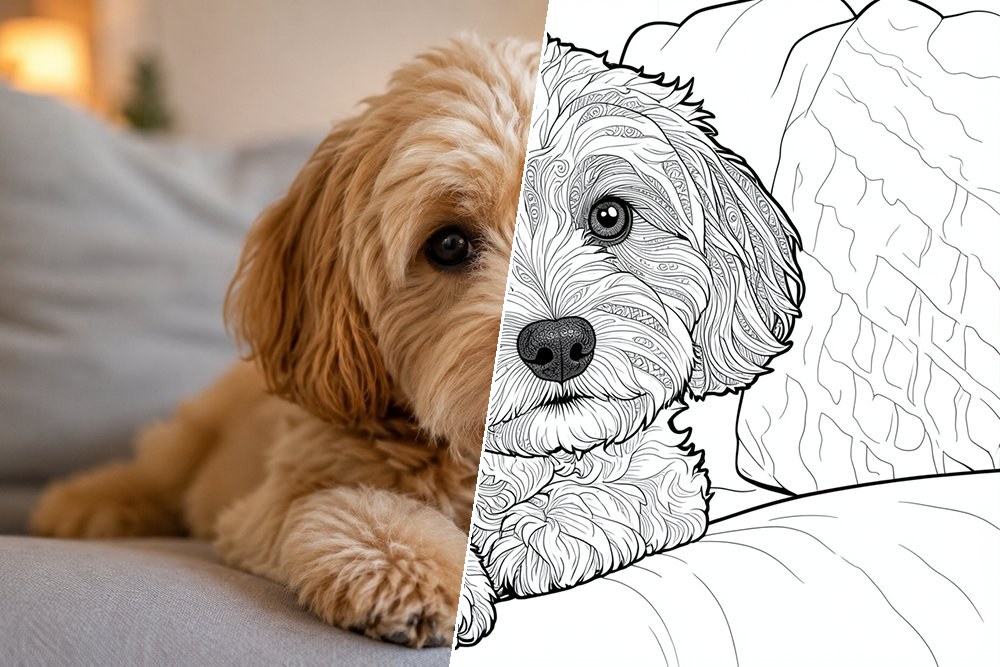
A coloring page of your dog or cat
A coloring page of your pet is maybe the most fun thing to start with. A sharp photo where your dog or cat looks straight into the camera gives the best result. Kids often especially love coloring in their own pet rather than just any animal.
A family photo or portrait
From a family photo or a portrait you make a personal coloring page where your child recognizes themselves, dad, mom or grandma. A close-up photo with the faces clearly in view works best. Nice to frame once it's been colored in.
A group photo with friends
A group photo with friends, a birthday party or the whole class becomes a cheerful coloring page full of characters. The more clearly everyone stands apart, the cleaner the lines come out.

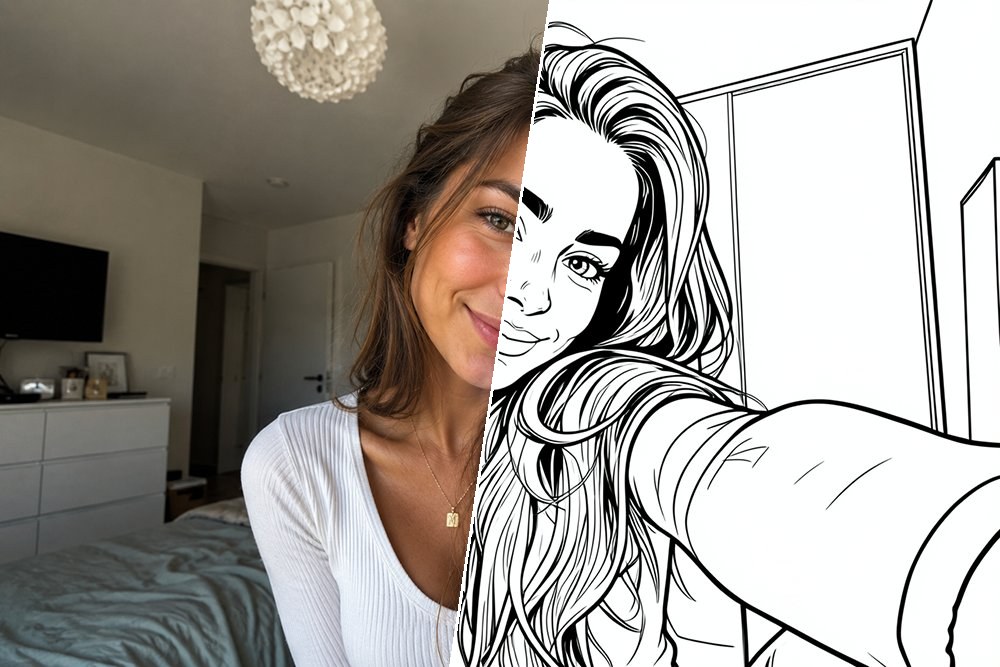
A selfie
You can convert a regular selfie too. Hold the photo straight on and make sure there's good light on the face, and you'll get clean, easily recognizable lines.
Food or an object
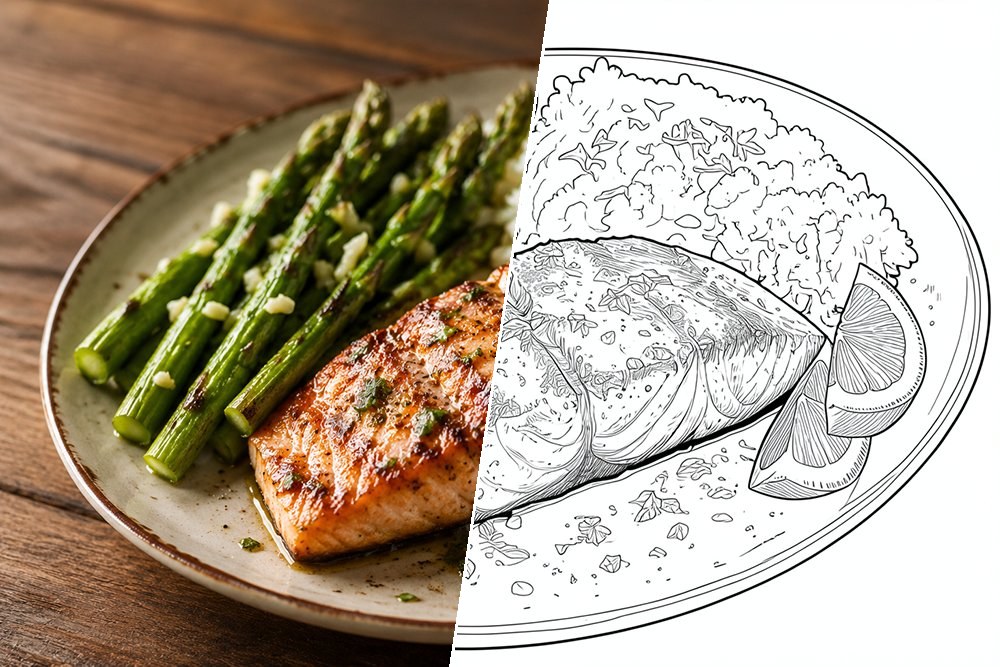
It doesn't have to be a person or an animal. A slice of cake, a bunch of flowers, your favorite toy or a nice building work just as well – especially up close and straight on or from the side.
Tips for the best result
The tool does the work, but with a good photo you get more out of it. A few things that help:
- One clear main subject works best – a photo that's not ambiguous gives the cleanest lines.
- Make sure there's enough contrast, so the subject stands out well from the background.
- A calm background helps. Lots of busyness behind it adds extra lines; a plain background is ideal, or switch on Remove background.
- Use a sharp, well-lit photo. Blurry or dark gives messy lines.
- Shoot up close. A close-up of a face or object works better than a photo from far away.
What can you use it for?
A coloring page from a personal photo is a bit more special than a ready-made one. A few occasions where it comes in handy:
- As a gift: a coloring page of the pet or the family, framed once it's colored in.
- On a rainy afternoon: something to keep the kids busy quickly, with a photo they recognize.
- For a birthday or a party: print a coloring page of the birthday kid or the group for each child.
- At school: a coloring page of a school trip or a class photo as a keepsake.
Your photo stays yours
You might be wondering what happens to your photo. In short: it stays on your own device. To create the coloring page, only a reduced copy is sent, without location data, and that photo isn't kept. You don't need to create an account, and it's free. So print and color as much as you like.
Rather start without a photo?
Don't have a suitable photo but still want a coloring page to your own taste? With our AI coloring page generator you describe in words what you want – for example "a dragon flying over a castle" – and create a coloring page without needing a photo.
Frequently asked questions
Can I make several coloring pages from one photo?
Yes. Try the same photo in different styles – General, Detailed, Simple and Cartoon each give a different coloring page. You can try as many times as you like.
Which style is best for younger children?
For little ones, the Simple style works best: calm, thicker lines that are easy to color in. Older kids and adults get on better with Detailed.
What paper can I print the coloring page on?
You download the coloring page as a PNG image and print it in whatever size you want, for example on A4 or Letter paper. Color it in with pencil, marker or paint – whatever you prefer.
Does it work on my phone too?
Yes, the tool works on computer, tablet and phone. So a photo you've just taken on your phone, you can convert right away.
Try it yourself
Feel like giving it a go? Grab a nice photo and make your own coloring page. Turn a photo into a coloring page →
Sudoku
May 21, 2026 — Colorpix
Three new free tools went online recently: a sudoku generator, a sudoku solver and a sudoku for kids. Generate a puzzle to your liking, get a tough sudoku solved step by step, or play a symbol sudoku with the little ones. No account, no ads inside the puzzle, no download limit.
What is sudoku again?
Sudoku is a logic puzzle on a 9×9 grid divided into nine 3×3 blocks. Every row, every column and every block must contain the digits 1 to 9 exactly once. A good sudoku always has exactly one solution and can be solved with pure logic, no guessing required. For younger players there are smaller variants too: 4×4 (digits 1-4) and 6×6 (digits 1-6).
1. Sudoku generator — build a puzzle the way you like it
In the sudoku generator you choose:
- Size: 4×4, 6×6 or classic 9×9
- Difficulty: easy, medium, hard or expert
- Play right in your browser, with timer, undo/redo and notes mode
- Download as PDF: 1 puzzle per page, or 4 puzzles per A4 to save paper
Stuck? The smart hint button doesn't just tell you which digit goes where — it also names the technique (Naked Single, Hidden Single, Naked Pair, Hidden Pair) that gets you there. So you actually learn how to solve, instead of just being handed the answer.
2. Sudoku solver — get your own puzzle solved with explanations
Got a sudoku from a newspaper, book or app you really can't crack? On the sudoku solver you enter the given digits and pick Next step for one cell with an explanation, or Full solution for the complete answer. The solver covers six solving techniques, from the simple Naked Single up to the more advanced X-Wing. Useful when you don't just want the answer but also want to understand why it's the answer.
3. Sudoku for kids — from age 4, with symbols
The sudoku for kids is built for young players from about age 4-5. Key differences with the regular generator:
- Only 4×4 and 6×6, so a puzzle stays doable within a reasonable time
- Symbols instead of digits: choose between animals, fruit, colors, vehicles or weather emoji — kids who can't count yet can still play sudoku
- Two levels: Easy and Hard
- Simple interface: no timer, no notes mode, no complicated buttons
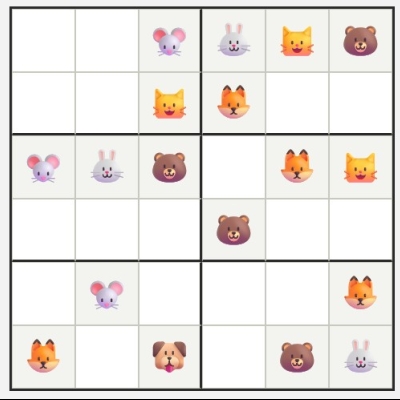
A PDF download is available too — handy for printing a whole set of worksheets for the classroom or a rainy Sunday afternoon.
Which level for which age?
A rough starting point by age:
- Age 4-5 (preschool): 4×4 with animals or fruit, easy
- Age 6-7 (1st grade): 4×4 or 6×6 with symbols, easy
- Age 7-8 (2nd grade): 6×6, easy moving up to hard
- Age 8-9 (3rd grade): 6×6 hard, then move on to the regular generator on easy
Tips to solve faster
- Start by scanning one digit at a time. Pick the 1, for example, and see where it already sits — which rows, columns and blocks still need it?
- Look for "Naked Singles": a cell where only one digit still logically fits.
- Use notes mode to jot candidates small in the top of a cell.
- Don't guess — a good sudoku is always 100% logically solvable. Rule out candidates one by one instead.
- Work blocks AND rows/columns at the same time. Sudoku is a combined puzzle.
Example: what a generated puzzle looks like
A 9×9 sudoku on medium typically starts with around 30 filled cells. The kids or beginner 6×6 looks more compact:
Rows 1 to 6, columns 1 to 6, blocks of 3×2. Digits 1 to 6. About 14 cells already filled on easy, about 9 on hard. Every row, every column and every block contains the digits 1 to 6 once in the solution.
The generator verifies that a puzzle has exactly one valid solution before showing it to you. No puzzle with multiple solutions, no puzzle that can only be cracked by guessing.
Free and available in nine languages
The three tools work without an account and are completely free. They are also available in nine languages across our network — English, Dutch, French, German, Spanish, Italian, Portuguese, Norwegian and Swedish — so the interface and hint explanations stay in the same language.
Practical tip
Not sure which tool you need? Start with a fresh puzzle on the generator. Get stuck and don't want to see the whole answer? Copy your puzzle into the solver and ask for a single step with an explanation — often that's enough to get you going again, without spoiling the whole solution. And for the youngest solvers, the symbol version for kids works from around age four.
Free True or False Generator from Any Text — for Teachers
April 27, 2026 — Colorpix
A new tool just launched on the site: a free true or false generator. Paste any text — a chapter, a news article, a short reading passage — and get a ready-to-use set of true or false statements with the correct answers. No account, no setup, no hassle.
What does this generator do?
You paste a short text (up to 3,500 characters), choose how many statements you want and at which difficulty level. The tool then reads the text and writes statements that are clearly true or clearly false based on what is in it.
What you get back:
- 3 to 10 statements, drawn directly from your text
- A clear true/false answer for each one
- An editable list — you can rewrite, reorder or delete any statement
- A printable worksheet (JPG or PDF), with or without the answer key
Example: from text to statements
To give an idea of what the output looks like, here’s a short source text:
The Eiffel Tower was completed in 1889 for the World’s Fair in Paris. Designed by engineer Gustave Eiffel, it stands 330 metres tall and was the tallest man-made structure in the world for 41 years. Today, around seven million people visit it every year.
The generator turns this into something like:
- The Eiffel Tower was finished in 1889. — True
- The Eiffel Tower was designed by an architect named Gustave Eiffel. — False (he was an engineer)
- The Eiffel Tower held the title of tallest structure for more than four decades. — True
Why this is useful in class
True or false questions are one of the fastest ways to check if pupils have actually read and understood a text. Instead of writing the statements yourself — which always takes longer than you would think — you let the generator do the first pass. You then tweak whatever does not quite fit and you have a ready exercise in a few minutes. It works equally well for reading comprehension, history facts, science topics, language lessons or current events.
How to use it
- Open the true or false generator
- Paste your text (up to 3,500 characters)
- Pick a difficulty: easy, medium or hard
- Choose how many statements you want (3 to 10)
- Click Generate and review the result
- Edit any statement that needs adjusting and download as JPG or PDF
Difficulty levels: easy, medium, hard
The three levels behave differently. Easy sticks close to the wording of the source text — facts are stated almost as they appear, so pupils only need to recognise them. Medium rephrases ideas, so pupils have to match a statement to the underlying meaning rather than the exact wording. Hard introduces subtle distinctions: small swaps in numbers, dates or relationships that require careful reading. Match the level to your group, or mix them in one worksheet.
Which texts work best
Factual texts give the strongest results: history passages, science explanations, biographies, geography snippets, simple news articles. Anything with concrete claims — names, dates, numbers, cause-and-effect — gives the generator clear material to work with. Opinion pieces, abstract reflections or very short fragments are harder, because there are fewer verifiable facts to turn into statements. As a rule of thumb: if a pupil could underline the key facts in the text with a pencil, the generator can turn them into a good worksheet.
Free and available in nine languages
The generator runs without an account and is completely free to use. It is also available in nine languages across our network — English, Dutch, French, German, Spanish, Italian, Portuguese, Norwegian and Swedish — so the statements come back in the same language as the source text.
Practical tip
If a single statement is not quite right, just edit it directly in the result list before downloading — often that is faster than regenerating the whole set. And if the result feels too easy, switch to Hard and generate again: the same text usually produces noticeably trickier statements at the higher level.
From text to word search: automatically extract keywords
March 5, 2026 — Colorpix
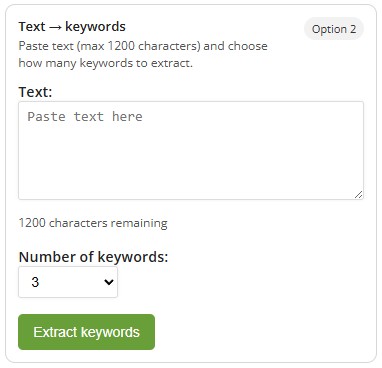
Since recently, there’s an extra option on the word search page: you can now extract keywords from a text. Useful if you’re working in class with a text from a book, a worksheet, a news snippet, or a theme corner, and you want to quickly make a word search from it.
What does this feature do exactly?
You paste a short piece of text into the text box (up to 1200 characters) and choose how many keywords you want to extract. The system then automatically pulls the most important words from the text.
Those words are immediately used for the word search:
- The keywords become the words hidden in the grid
- You don’t have to figure out yourself which words fit well
- You get a word search faster that matches the class text
Why this is useful in class
In practice it often goes like this: you discuss a text, you want to repeat the key words, and you want to add a short activity. With this option you can do that quickly without much preparation.
How to use it
- Go to the word search page
- Choose the option Text → Keywords (text to keywords)
- Paste your text (max. 1200 characters)
- Choose the number of keywords
- Extract the keywords and generate the word search
Free
This feature is free to use. So you can quickly create a word search based on your own lesson material or a text you just covered, without an account or any hassle.
Practical tip
If you notice words you don’t want (e.g. names or words that are too long), you can shorten or tweak the text and run it again. That often gives you a better set of keywords for your class.
Millions of puzzles created: our tools in numbers
January 25, 2026 — Colorpix
Our educational tools are used every day. Teachers, parents and students create puzzles and coloring pages online, quickly and easily. The numbers clearly show how widely these tools are used.
The AI coloring pages generator was launched recently and had a strong start. So far, 39,177 coloring pages have been generated. Users can easily create unique coloring pages based on their own theme, for school or home use.
The rebus generator is also used a lot. A total of 77,392 rebuses have already been created. This tool is often used to practice language skills and logical thinking.
The real favorites on the site are the word search and crossword puzzle generators.
– 5,448,519 crossword puzzles created
– 7,065,150 word searches generated
Anyone who wants to make a word search or create a crossword puzzle will find a simple and flexible solution. Themes, words and difficulty can be fully customized, without installation.
These numbers show how broadly our tools are used, from simple exercises for young children to more advanced puzzles for older students and adults.
We continue to develop practical and user-friendly educational tools that are easy to use and immediately ready.
End-of-Year Activities: Get Creative with Our Images and Puzzles
December 10, 2025 — Colorpix

Year-end celebrations: getting creative with our images and puzzles
The year-end period is a good moment to slow down and spend time together. Between holiday preparations, days off, and the school break, there is often space for calm, creative activities. With our coloring pages, image maker, and puzzle tools, you can easily fill those moments, both at home and in the classroom.
For home and family time
- New Year coloring pages
Year-end coloring pages offer a calm activity during busy days. Children can color while others are cooking, tidying up, or chatting. It helps everyone stay together at the table without screens and creates a relaxed atmosphere. - Storytelling with an image
A Christmas or New Year image works well as a starting point for a shared story. Each person adds one sentence in turn. This encourages imagination, language skills, and listening to one another, without becoming complicated. - Create your own drawings
With the image maker, each family member can create a personal illustration. These drawings can be used as New Year cards, small gifts, or simply as a creative keepsake from the holiday period. - A family puzzle game
A word search, rebus, or crossword with year-end words turns puzzling into a shared game. You can solve one large puzzle together or turn it into a small team challenge, adapted to different ages.

For teachers and the classroom
- Year-end themes in lessons
Images and coloring pages help make the year-end theme visual and concrete. They can be used as a starting point for discussions, writing tasks, or creative activities, even in classes with mixed ability levels. - Puzzles as practice
With the puzzle tools, you can quickly create exercises tailored to your class. Word searches, rebuses, and crosswords work well for vocabulary practice, reading comprehension, or independent work during stations or quiet work time.
Why these tools are useful
- Quick to use
All tools work directly online. There is nothing to install, and you can start immediately, both at home and at school. - Creative and playful
Children actively work with language and images in a way that matches their pace and interests. - For family and education
The same materials can be used in different settings, making them flexible and practical.
Try it out
Explore the year-end images, create your own drawings, or build a puzzle that fits your situation. Everything is free and easy to use.
Discover our year-end tools