

Turn a photo into a coloring page
Upload a photo and turn it into a coloring page in one click — black outlines on a white background, ready to print and color. No account needed.
Your photo stays on your device — only a resized copy without location data is sent to create the coloring page. We do not keep your photo.
What can you turn into a coloring page?
Almost any photo makes a nice coloring page. Upload a photo of your pet, your family, a selfie or even a meal — the tool turns it into a black-and-white line drawing in seconds that you can print and color right away.
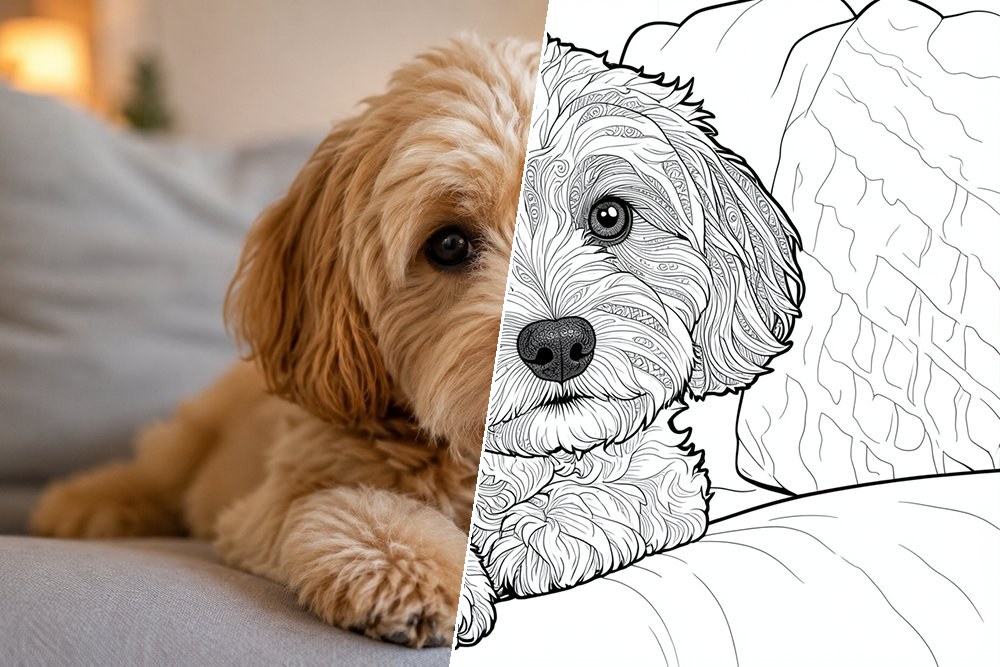
Coloring page of your pet
Make a coloring page of your dog, cat or other pet. A clear close-up with a plain background gives the nicest result.
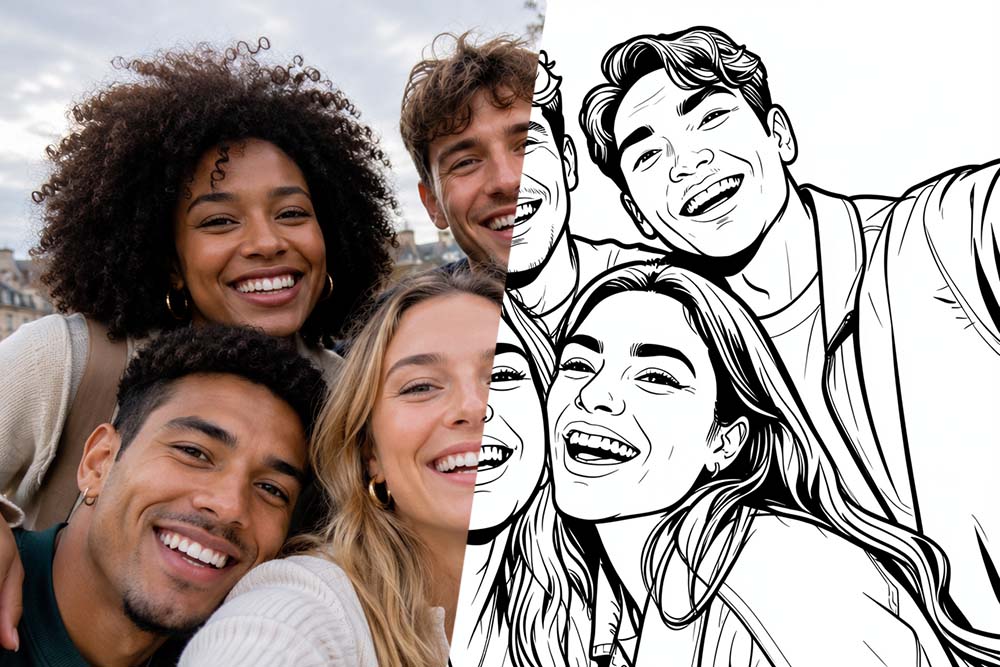
Coloring page of a group photo with friends
Turn a group photo with friends, a holiday snapshot or a portrait into a coloring page — a fun and personal gift to color together.
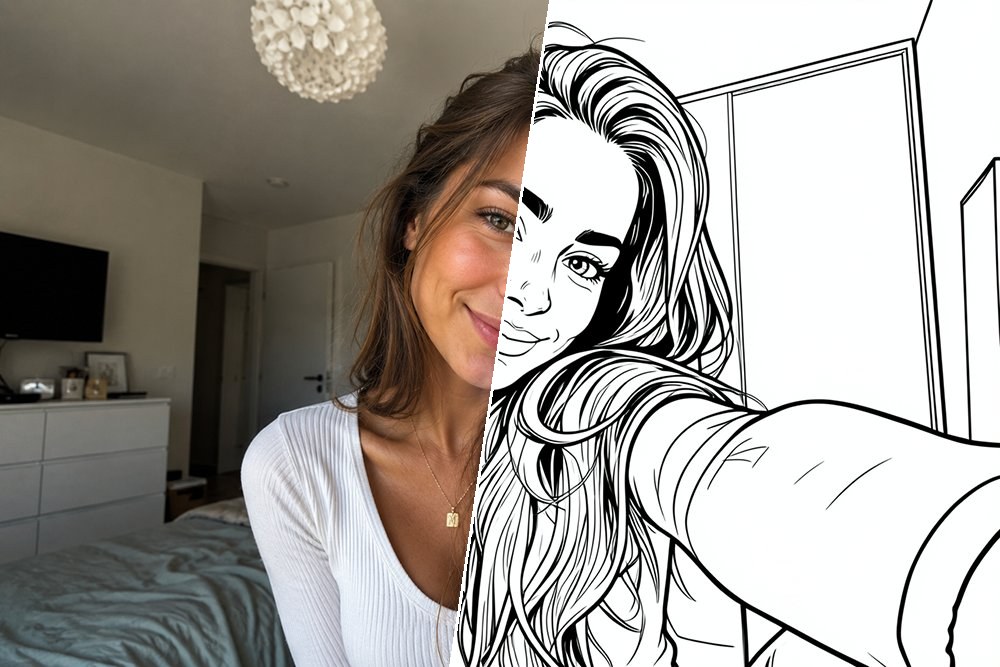
Coloring page of a selfie
Turn your favorite selfie into a coloring page in one click. Choose the "Comic" style for a playful cartoon look.
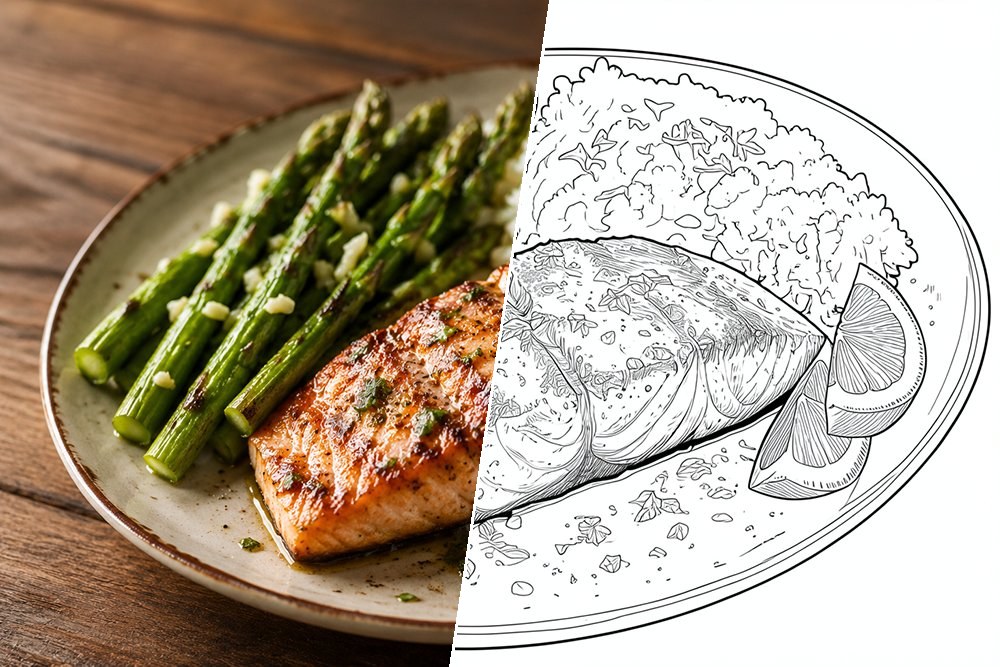
Coloring page of food or an object
A tasty meal, a flower or a favorite toy: still lifes and objects make surprisingly fun coloring pages too.
From photo to coloring page
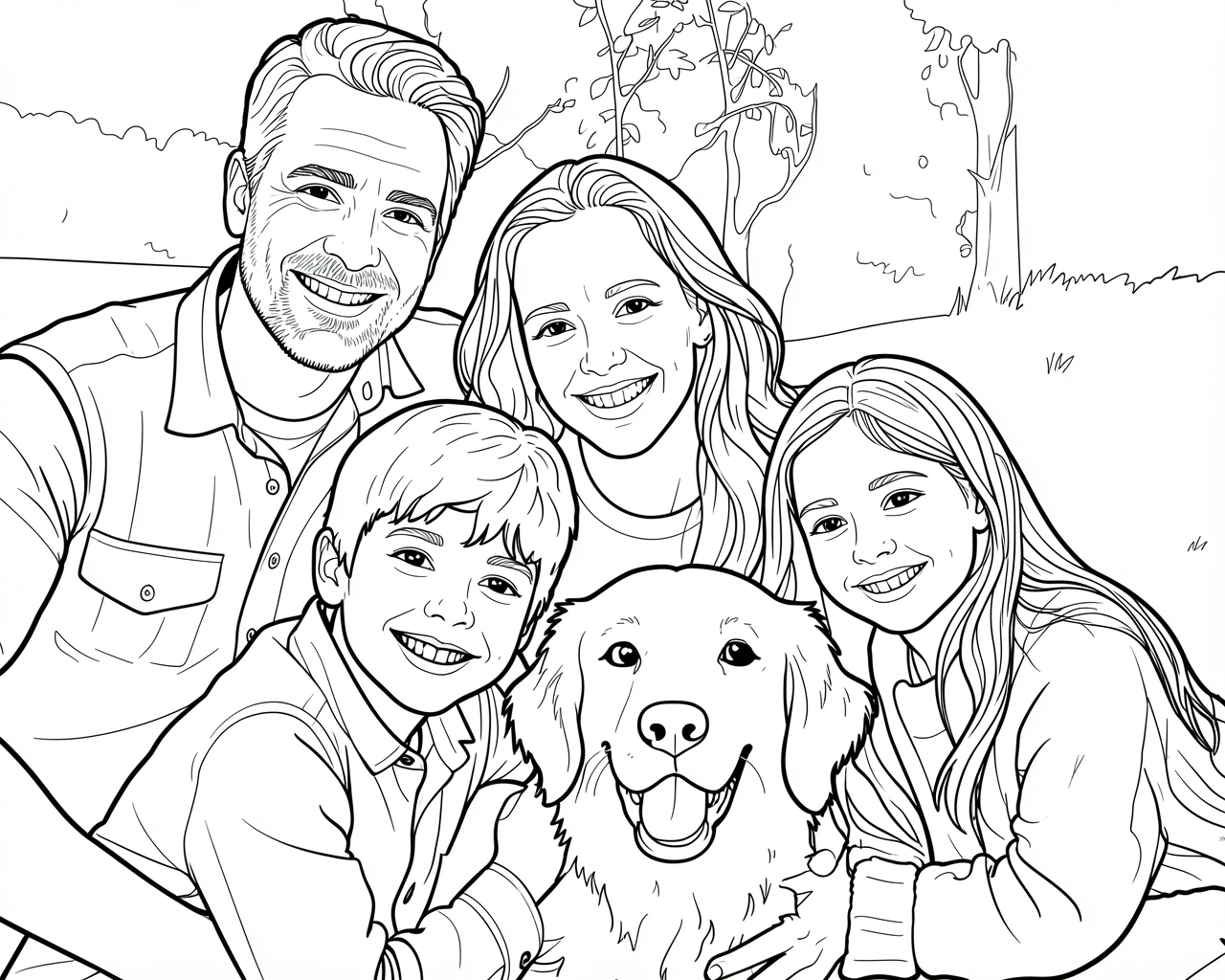

Drag the handle to compare the photo and the coloring page.
Which photos work best
- A clear main subject works best — a pet, a face or a single object gives a nicer coloring page than a busy group photo.
- Make sure there is good contrast between the subject and the background, so the outlines come out clearly.
- A plain background helps: with lots of small details the coloring page quickly becomes a tangle of lines.
- Use a sharp, well-lit photo — blurry or dark photos give fainter lines.
- A close-up portrait, or an object straight on or from the side, usually gives the most colorable result.
How it works
- Click the upload box or drag a photo into it (JPG or PNG).
- Look at the preview of your photo.
- Click "Make coloring page" and wait a few seconds while the coloring page is created.
- Download the coloring page as a PNG and print it to color.
What you can use it for
A coloring page made from a photo is fun and personal. Make a coloring page of a pet, a favorite cuddly toy or a holiday photo, surprise someone on their birthday with their own coloring page, fill a rainy afternoon, or use it as classroom material. You print as many copies as you like and let everyone color their own version.
Frequently asked questions
How do I turn a photo into a coloring page?
Upload a photo, click "Make coloring page" and download the result as a PNG. You get black outlines on a white background, ready to color.
Is it free?
Yes, you can make coloring pages from your photos for free. You do not need an account.
What happens to my photo?
Your photo is resized on your own device and stripped of location data; only that resized copy is used to create the coloring page. We do not keep your photo.
Which photos work best?
Photos with a clear subject and good contrast work best — for example a pet, a portrait or an object against a plain background.
Which file formats can I upload?
You can upload JPG and PNG photos.
Can I use a photo of a person?
Yes, portraits often work very well. Your photo is resized on your own device and sent without location data, and we do not keep it.
How long does it take to make a coloring page?
Usually a few seconds. After uploading you click "Make coloring page" and the result appears on the page automatically.
What paper size can I print the coloring page on?
The coloring page is an ordinary PNG you can print at any size; A4 works best for coloring it nice and large.
Does it work on a phone or tablet?
Yes, the tool works on desktop, tablet and phone. On your phone you simply pick a photo from your gallery or take one directly.
Why does my photo not work or why do I get an error?
That can happen with a very busy or unclear photo. Try another photo with one clear subject and a plain background — that gives the best result.